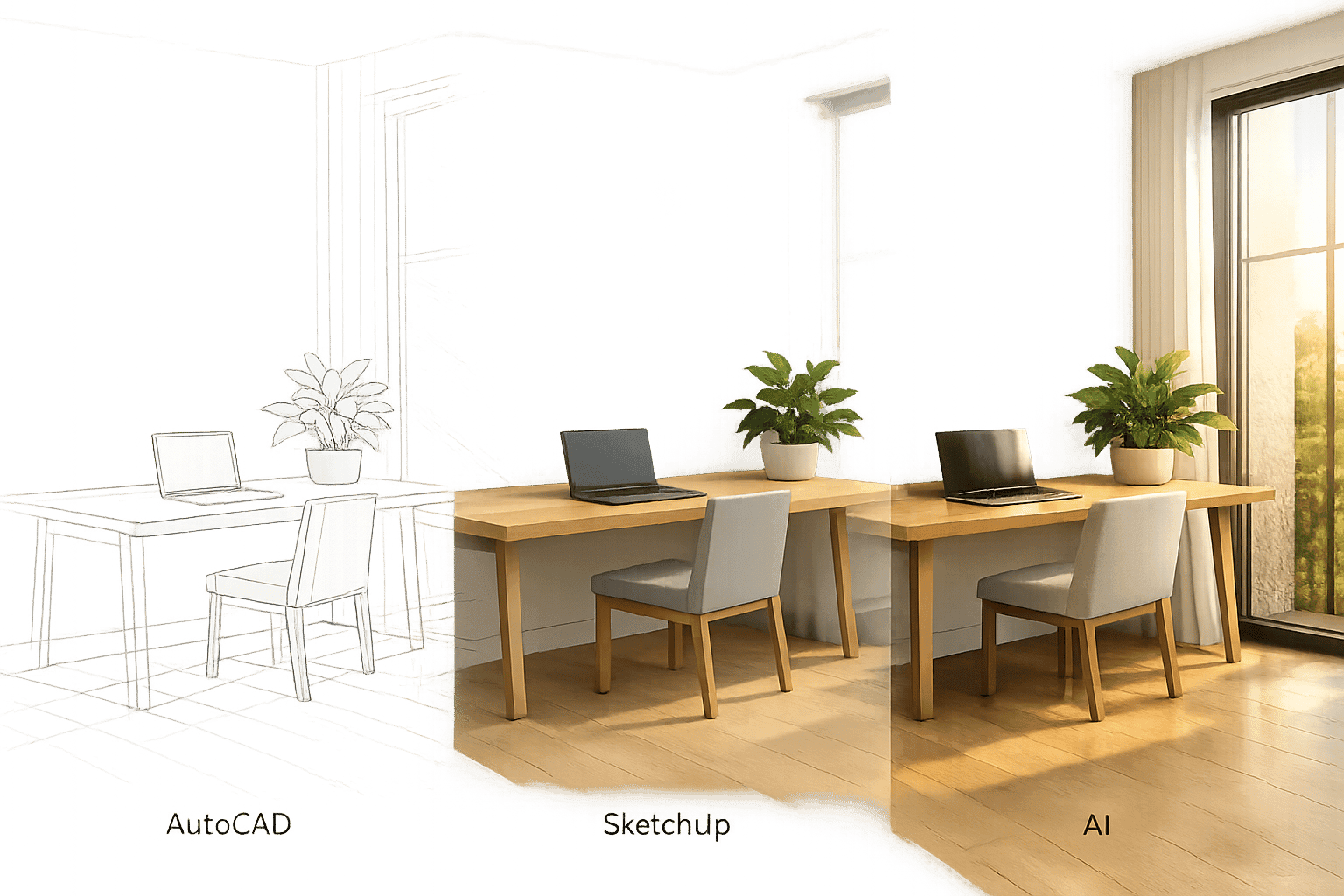
SketchUp vs AutoCAD vs AI Tools: Render Comparison
Rendering tools have evolved, but which one suits your needs best? Here's a quick breakdown:
- SketchUp: Best for conceptual 3D modeling with a user-friendly interface. Great for early-stage designs but requires plugins like V-Ray for high-quality renders.
- AutoCAD: Ideal for precise 2D drafting and technical modeling. Strong in documentation but lacks advanced rendering capabilities.
- AI Tools: Game-changers in speed and ease, producing photorealistic renders in seconds without high-end hardware. Perfect for quick client presentations but limited in fine control.
Key Takeaways:
- SketchUp excels in early design stages; V-Ray boosts its rendering quality.
- AutoCAD is unmatched in technical accuracy but slow for rendering workflows.
- AI tools like Render a House and MyArchitectAI are fast, affordable, and accessible on any device.
Quick Comparison:
| Tool | Best Use | Rendering Speed | Ease of Use | Annual Cost | Hardware Needs |
|---|---|---|---|---|---|
| SketchUp | Conceptual 3D modeling | Hours to days | Moderate (needs plugins) | $299–$1,199 | High-end GPU required |
| AutoCAD | Technical drafting, documentation | Hours to days | Low (steep learning curve) | ~$2,095 | High-end workstation |
| AI Tools | Quick renders, client presentations | Seconds | Very high (no training) | $36–$468 (varies by tool) | Any device (cloud-based) |
For the best results, combine tools: SketchUp for concepts, AutoCAD for precision, and AI tools for fast, polished visuals.
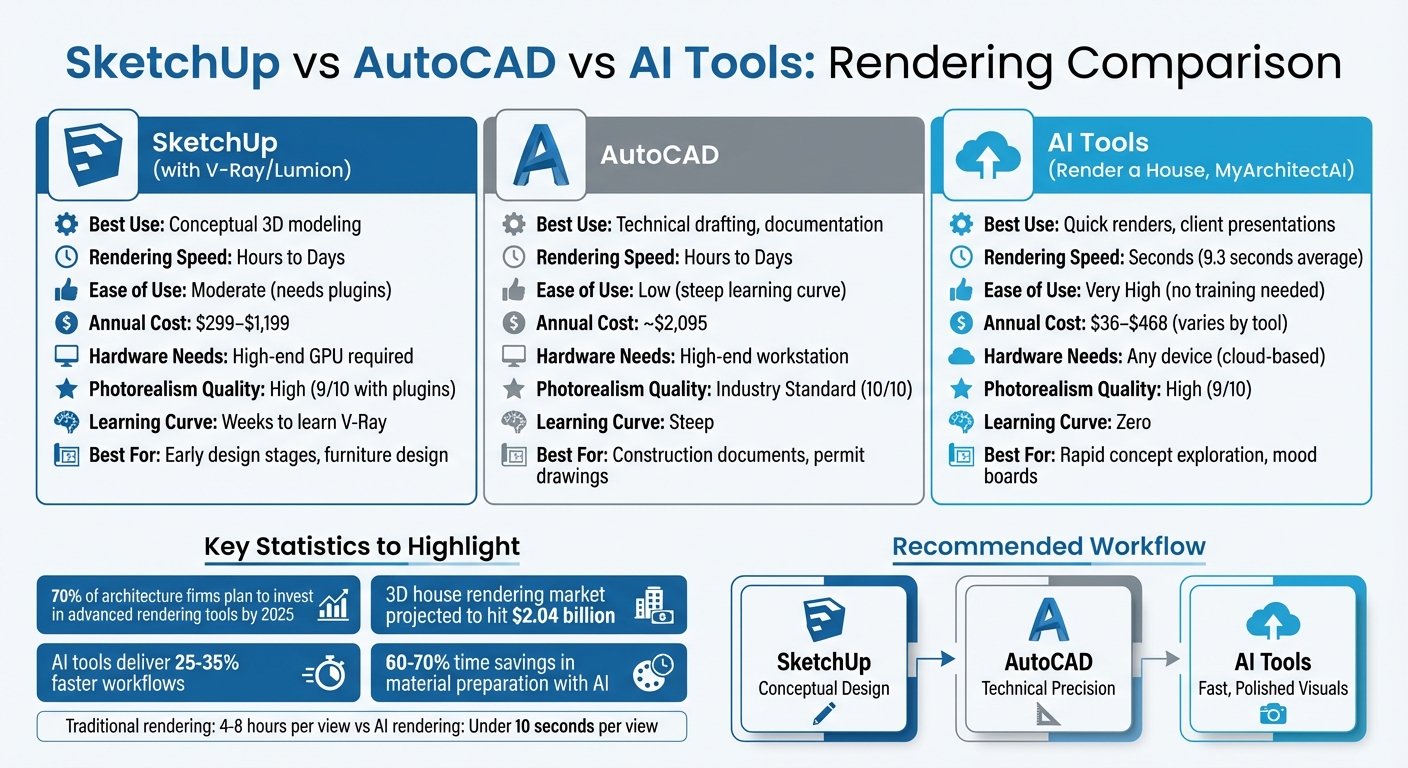
SketchUp vs AutoCAD vs AI Tools: Complete Rendering Comparison Chart
Should You Replace Your Renderer with SketchUp 2025? (The Truth)
sbb-itb-a34ea2e
SketchUp Rendering Performance
SketchUp's built-in output is great for conceptual designs but falls short when it comes to photorealism. While the software is known for its intuitive "Push/Pull" modeling approach, creating polished, high-quality architectural renders typically requires third-party tools like V-Ray or the newer AI Render tool integrated into the platform.
Photorealistic Rendering with V-Ray and Other Extensions
V-Ray takes SketchUp to the next level, turning it into a serious rendering tool. One of its standout features is interactive rendering, which allows you to tweak lights and materials in real time. It also includes a library of over 200 pre-made materials - like tiles, wood flooring, and translucent finishes - that far surpass SketchUp's basic material options.
Lighting is another area where V-Ray shines. Tools like Light Gen simulate natural lighting scenarios, and Light Mix lets you adjust lighting even after the rendering is complete - no need to start over. Plus, V-Ray supports multiple rendering methods (CPU, GPU, or Hybrid) to optimize performance, and heavy tasks can be offloaded to Chaos Cloud to avoid overloading your local system. However, the trade-offs are a steeper learning curve and longer rendering times, especially for complex scenes, which can take hours or even days.
SketchUp 2025 made strides by introducing PBR (Physically-Based Rendering) materials directly within the viewport, making it possible to add glossy and reflective effects without external plugins. But as expert Alex Schreyer points out, while this is a step forward, it still doesn't match the capabilities of V-Ray.
Even with these advancements, SketchUp's native tools still fall short when it comes to creating detailed, client-ready renders.
Native Rendering Limits and Complex Model Performance Issues
Although V-Ray elevates SketchUp's rendering capabilities, its built-in options remain limited, even with the addition of the AI Render tool.
SketchUp's core focus is on conceptual design, not high-end photorealistic rendering. The AI Render tool, integrated in SketchUp 2026.1 (formerly called SketchUp Diffusion), can generate visualizations in about 9.3 seconds. However, it struggles with key details like reflections, light cone alignment, and rendering human faces accurately.
The AI tool operates on a credit-based system, with each rendered image costing 5 credits. While it's fast, this approach can sometimes compromise "model fidelity", introducing creative artifacts instead of staying true to the original geometry. For highly detailed and precise scenes, V-Ray remains the go-to option, though its annual cost of around $540 may be a consideration.
When to Use SketchUp for Conceptual 3D Visualization
Despite its limitations in photorealism, SketchUp is still a top choice for early-stage design work. Its PreDesign features are particularly helpful for analyzing climate responsiveness, sun paths, and shading during the initial planning phase. When the goal is to focus on form rather than finish, SketchUp's "sketchy lines" are perfect for schematic design.
The AI Render tool is especially useful for quick conceptual visualizations. Designers can drop simple massing models into settings like parks or gardens to create early-stage visuals without spending time on detailed modeling. Visualization artist Luke Vercia highlights the benefits of AI tools:
By far the best in terms of speed, accuracy-to-geometry, and customization... there aren't a ton of hardware requirements which I think is a huge advantage compared to renderers like V-Ray and Lumion.
For final presentations that demand top-tier realism and precise lighting, V-Ray is the better option. But for quick iterations and client feedback, SketchUp's AI tool or similar platforms are ideal. The key is to align the tool with the project's phase and requirements, rather than trying to make one solution fit every need.
AutoCAD Rendering Performance
AutoCAD has been a cornerstone for precise 2D drafting and 3D technical modeling for years. While the software includes built-in rendering tools, these features are basic and often require third-party applications like V-Ray, Lumion, or Enscape to achieve highly realistic results.
2D Precision and 3D Technical Modeling Capabilities
AutoCAD shines when it comes to creating technically accurate construction documents. With a 31% market share among architecture, engineering, and construction professionals in India, it offers tools like Grid Snap and Zoom to ensure precision. Its focus on prototype development makes it a reliable choice for creating detailed and accurate solid models.
For 3D modeling, AutoCAD supports physically accurate lighting using IES (Illuminating Engineering Society) files from real-world manufacturers. It also allows for high-resolution output, up to 4,096 x 4,096 pixels, suitable for presentation-quality images. However, AutoCAD's 3D modeling is non-parametric, meaning any adjustments require manual edits - a process that can be tedious compared to modern BIM software.
Photorealistic Rendering Gaps and Slow Workflow Speed
While AutoCAD excels in technical modeling, it struggles with realistic rendering. The software’s limitations include a palette restricted to 256 colors and reliance on simple hatching instead of intricate textures. As GeeksforGeeks points out:
AutoCAD is useless in editing line and location as freely as in case of illustration programs... In case of 3D geometry it uses limited effects.
Rendering in AutoCAD involves several manual steps, such as assigning materials, positioning lights, and adjusting exposure settings before running the RENDER command. Skipping these steps results in default materials and lighting, which lack flexibility. Additionally, local rendering can be resource-intensive, often maxing out system RAM and requiring significant time - sometimes hours - to complete tasks sequentially rather than in parallel.
Tom Brennan, an experienced AutoCAD user, emphasizes the software’s core philosophy:
AutoCAD's feature set is built around one core idea: precision matters more than speed.
AutoCAD's performance is largely single-threaded, relying on high CPU clock speeds rather than multiple cores. For 3D modeling, 16GB of RAM is the minimum, but 32GB–64GB is recommended for handling more complex projects.
When to Use AutoCAD for Detailed Drafting and Documentation
AutoCAD is most effective in scenarios where technical accuracy takes precedence over visual appeal. It remains a top choice for permit drawings, fabrication plans, and construction coordination - situations where exact measurements are critical. As Mehmet Karaagac from ArchiVinci notes:
If an image must be defended in a review or approval process, CGI [AutoCAD] is the safer option.
At a cost of approximately $2,095 per year, AutoCAD is about 30% cheaper than Revit, making it a cost-effective option for firms prioritizing technical work. Many architects use AutoCAD to establish precise geometry before exporting models in formats like .FBX, .3DS, or .OBJ to specialized rendering engines like V-Ray or Lumion for high-quality visuals. Some professionals also integrate AutoCAD with AI tools via plugins like Veras or ArkoAI, using "clay renders" from AutoCAD as a base for AI-driven style enhancements.
As Vibe3D explains:
AutoCAD rendering is so much more than just a pretty picture; it's a vital communication tool that closes the gap between a technical blueprint and what a project will actually look like.
However, AutoCAD alone is not equipped to deliver client-ready photorealistic renders without significant help from external tools. These strengths and limitations provide a foundation for comparing how AI tools and SketchUp handle similar challenges in architectural visualization.
AI Tools Rendering Performance
AI tools are transforming the rendering process, offering results in just seconds compared to the hours or days required by traditional software like SketchUp or AutoCAD. These tools rely on cloud-based GPUs, which eliminate the need for high-end hardware and reduce the learning curve significantly. For instance, MyArchitectAI boasts an average rendering time of 9.3 seconds per image, a stark contrast to the manual setups and complex workflows of older methods. Instead of navigating intricate material editors or lighting setups, users can generate renders with simple text prompts or one-click engines.
The hardware demands further underscore this shift. Traditional rendering software such as V-Ray or Lumion requires robust systems, like an NVIDIA RTX 3060 or better. In contrast, cloud-based AI tools perform all processing remotely, allowing users to work on any device - even mobile phones. Visualization artist Luke Vercia highlights this advantage:
by far the best in terms of speed, accuracy-to-geometry, and customization... there aren't a ton of hardware requirements which I think is a huge advantage.
This accessibility is fueling rapid adoption. By 2025, 70% of architecture firms plan to invest in advanced rendering tools, and the 3D house rendering market is projected to hit $2.04 billion. The combination of speed and minimal hardware dependency is reshaping how architects and designers approach visualization.
AI-Powered Rendering Platforms Overview
The AI rendering market is filled with platforms catering to various needs, including Render a House, MyArchitectAI, ArchiVinci, D5 Render, PromeAI, ArchSynth, Rendair, ReRoom, ReRender, and ArchitectAI. Most of these tools accept common image formats like JPG, PNG, and WEBP exported from programs like AutoCAD or SketchUp. Some even offer direct plugins for seamless integration. SketchUp 2026.1, for example, features an "AI Render" tool that operates on a credit-based system, allowing users to generate visualizations directly from their models.
These platforms generally fall into three categories:
- Sketch-to-render platforms: Tools like ArchiVinci and Mnml.ai convert hand-drawn or digital sketches into photorealistic images.
- Style transfer tools: Software like HomeDesign AI applies aesthetic treatments to existing renders.
- Hybrid solutions: Platforms like D5 Render combine real-time ray tracing with AI-driven material and lighting optimizations.
Some tools, such as Veras and ArkoAI, function as plugins for software like SketchUp, Revit, and Rhino, bridging the gap between traditional modeling and AI-driven visualization.
Render a House: Speed, Cost, and Customization Benefits
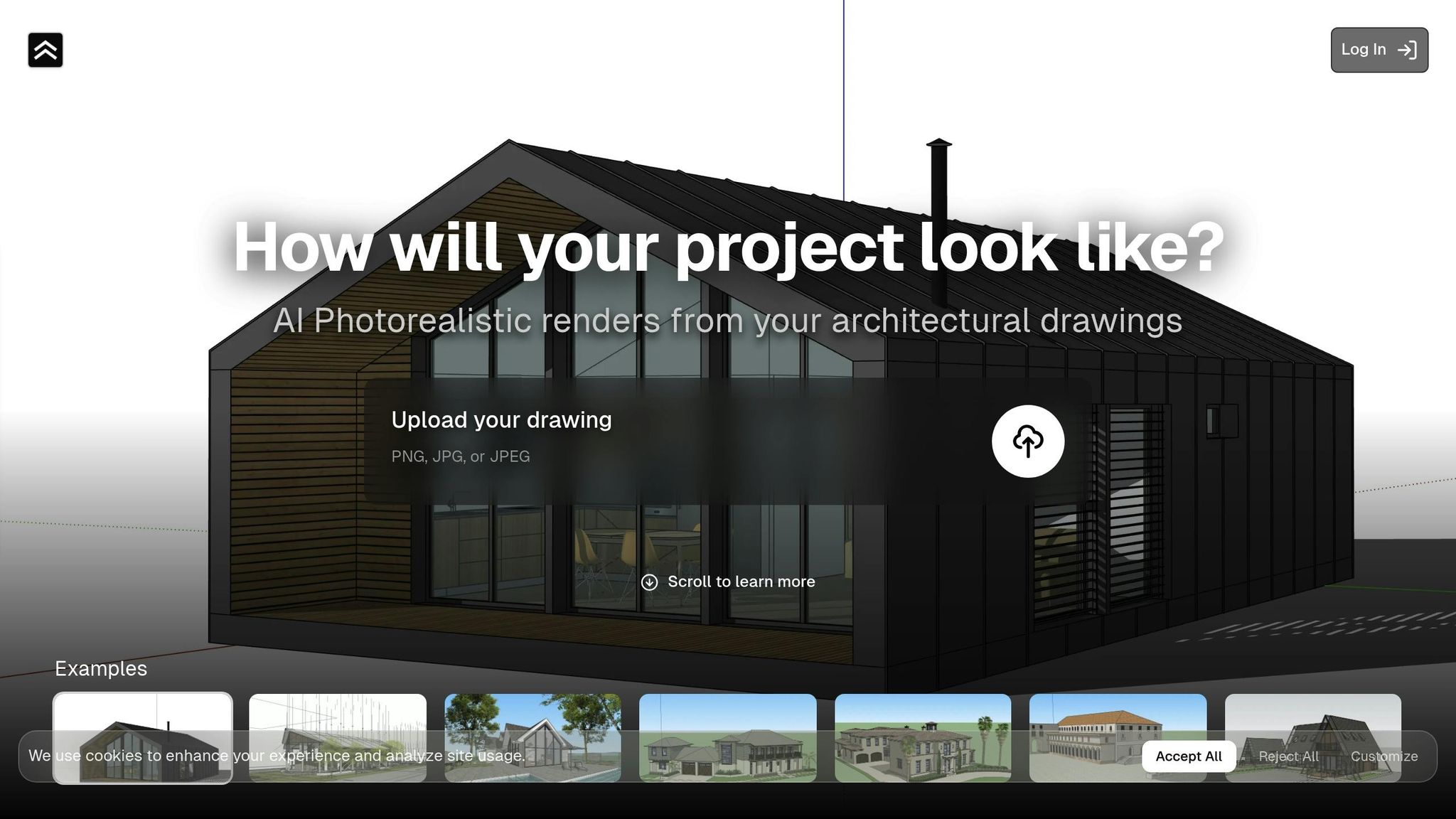
Among these platforms, Render a House stands out for its simplicity and affordability. It offers a $3 per view pricing model with unlimited edits and no expiration dates, a stark contrast to competitors like ArchiVinci ($39 for 3 days unlimited or $699 annually) and MyArchitectAI ($96–$384 annually). Render a House delivers high-resolution outputs with accurate lighting, materials, and textures, allowing users to customize environments with options like day/night settings and location types (e.g., countryside, beach, forest, suburb).
For professionals, the Pro subscription at $39/month includes unlimited view uploads, full material customization, and access to a Studio Consulting tier with expert assistance and priority support. This setup is particularly appealing for agencies managing multiple projects, as it encourages experimentation without worrying about resource limits.
Compared to D5 Render ($360 annually for Pro features) or traditional tools like 3ds Max (~$2,085/year) and Lumion ($749–$1,499/year), Render a House offers a cost-effective solution without sacrificing quality. Its intuitive workflow eliminates the technical hurdles often associated with traditional rendering software.
Other AI Tools: Features and Workflow Compatibility
While Render a House emphasizes affordability and ease of use, other platforms cater to specific needs:
-
MyArchitectAI: Known for producing over 1.5 million renders, it offers a one-click engine that generates photorealistic visuals in under 10 seconds. It includes features like a creativity slider and 4K output capabilities. Eric Carlson of Carlson Design Group praises its performance:
I have tried most of the other rendering programs on the market and they don't even come close to the speed and quality.
- ArchiVinci: Focuses on style transfer, allowing users to explore aesthetics like modern minimalism or cinematic exteriors. It also features an AI editing mode for refining materials and lighting without re-rendering the entire scene.
- D5 Render: Combines ease of use with real-time features, offering tools like AI-generated texture maps and atmosphere matching. This makes it ideal for residential projects where clients need to see multiple design options quickly.
Professional studios report 25-35% faster workflows and 60-70% time savings in material preparation when incorporating AI tools strategically. However, these tools are best suited for early-stage visualizations and inspiration rather than precise, control-heavy renders. Architect Eirini Makarouni advises:
AI rendering tools are ideal for inspiration, experimentation and early idea representations. Nevertheless, it is important to retain creative control... paying close attention to details such as material textures, lighting effects, and spatial proportions.
Many firms adopt a hybrid approach, using AI for rapid iterations and traditional 3D modeling for detailed, client-ready presentations. This balance ensures both speed and accuracy, guiding the selection of tools based on specific project needs.
Side-by-Side Comparison Table
When you line up SketchUp, AutoCAD, and AI rendering platforms side by side, the differences in speed, cost, and workflow become immediately clear. Traditional tools excel in precision and control but often require powerful hardware and time-intensive processes. AI tools, on the other hand, prioritize speed and accessibility, offering a fresh approach to rendering.
Here’s how these platforms compare across key metrics for architects and designers tackling residential and commercial projects in 2026:
| Feature | SketchUp (with V-Ray/Lumion) | AutoCAD/Revit | Render a House | Other AI Tools (MyArchitectAI, ArchiVinci, D5) |
|---|---|---|---|---|
| Photorealism Quality | High (9/10 with plugins) | Industry Standard (10/10) | High (9/10) | High (9/10) |
| Rendering Speed | Hours to Days | Hours to Days | Seconds | Under 10 Seconds |
| Ease of Use | Moderate (weeks to learn V-Ray) | Low (steep learning curve) | Very High (no training needed) | Very High (zero learning curve) |
| Annual Cost | ~$808 (including V-Ray) | ~$2,545 | $36 (12 views) or $468 (Pro unlimited) | $96–$384 (MyArchitectAI); $699 (ArchiVinci annual) |
| Hardware Requirements | High-end GPU (RTX 3060+) | High-end workstation | Any device (cloud-based) | Any device (cloud-based) |
| Style Range | Unlimited (manual control) | Technical/BIM-focused | 6+ environment presets (day, night, urban, etc.) | Various presets with style transfer options |
| Workflow Integration | Native 3D modeling | Native 2D/3D CAD | Upload PNG/JPG from any software | Plugins for SketchUp/Revit/Rhino; Direct upload |
| Best Use Case | Conceptual 3D & furniture design | Technical documentation & BIM | Fast client presentations & unlimited iterations | Rapid concept exploration & mood boards |
Key Takeaways
Render a House stands out with its $3 per view pricing model, which includes unlimited edits. For studios juggling multiple projects, the Pro plan ($39/month) offers unlimited uploads and full material customization. This makes it a more affordable option compared to D5 Render’s $360 annual Pro license.
Rendering speed is another area where AI tools shine. While SketchUp with V-Ray can take 4–8 hours to produce a single high-resolution exterior view, Render a House and MyArchitectAI can achieve similar results in under 10 seconds. This speed is a game-changer, allowing architects to refine designs in real time during client meetings.
When it comes to hardware, traditional tools like SketchUp and AutoCAD require high-end GPUs, such as the NVIDIA RTX 3060+, to handle rendering workloads. AI tools eliminate this barrier by leveraging cloud processing, making them accessible on virtually any device.
Rendering Different Architectural Styles
Exterior and Interior Photorealism Quality Tests
The way each tool approaches architectural styles reveals its specific strengths and limitations. For instance, SketchUp relies heavily on add-ons like V-Ray or AI plugins such as Veras and ArkoAI to achieve photorealistic results. Without these enhancements, SketchUp falls short in producing photorealism. It performs well in massing but struggles with finer details, such as capturing the raw texture of brutalist concrete or the refined look of boutique interiors.
AutoCAD, with its focus on technical precision, is less equipped to handle the subtleties of materials. Its native rendering capabilities don’t effectively convey details like the warmth of oak flooring or the intricate texture of travertine walls, which are often essential for communicating a complete architectural vision.
AI-driven tools, including Midjourney and Rendair AI, take a different approach. They use specific prompts to define materials - like travertine, oak, or metal - with remarkable accuracy. These platforms are even capable of interpreting industry-specific terms such as "GFRC", "rainscreen", or "anodized aluminum", ensuring that the rendered visuals align closely with the architect's intent. A standout example is a multifamily residential project rendered using Visualizee.ai, where the tool generated exterior hero shots, lobby views, roof terrace, and aerial renders in just five days. This sharply contrasts with the traditional timeline of 2–3 weeks, demonstrating how AI tools can streamline workflows.
Day/Night Lighting, Urban/Suburban, and Custom Environment Rendering
Lighting and environmental rendering can be a time-intensive process for tools like SketchUp with V-Ray and AutoCAD, both of which require manual adjustments to transition between lighting conditions or environments.
AI platforms, however, excel in this area. Tools like mnml.ai and Visualizee.ai provide instant previews across a range of lighting conditions - day, night, golden hour - and environments such as urban, suburban, countryside, beach, or forest settings. Similarly, Render a House offers six pre-set environments, allowing architects to quickly visualize how a design performs in various contexts. This capability proves invaluable during client meetings, where stakeholders often request to see how a building looks under different lighting or environmental conditions.
"AI rendering tools are ideal for inspiration, experimentation and early idea representations. Nevertheless, it is important to retain creative control over an AI generated image, paying close attention to details such as material textures, lighting effects, and spatial proportions."
– Eirini Makarouni, Architect and PhD Researcher
These lighting and environment features directly influence the efficiency and accuracy of the rendering process.
Performance Metrics: Time, Resolution, and Material Accuracy
When it comes to speed and cost-efficiency, Render a House stands out. It combines fast render times with a pay-as-you-go pricing model, delivering 4K client-ready renders in just 15 seconds - a stark contrast to the hours required by traditional workflows.
Modern AI tools like Visualizee.ai support resolutions up to 4K. However, material accuracy varies depending on the tool. AutoCAD offers precise dimensional control but applies materials in a rigid, less dynamic way. SketchUp, on the other hand, relies on 3D Warehouse assets, which can be inconsistent in quality. Meanwhile, AI platforms like Vibe3D not only preserve geometry but also enhance results with advanced lighting simulations.
For studios managing multiple projects, Render a House offers a cost-effective solution. At $3 per view with unlimited edits and renders, its pay-as-you-go model encourages experimentation with different materials and lighting setups. For those needing more customization, the Pro plan at $39 per month includes full material control, enabling architects to refine finishes across styles - whether contemporary, classical, or industrial - without requiring high-end hardware.
Strengths, Weaknesses, and When to Use Each Tool
SketchUp shines when it comes to quick spatial exploration and visualizing 3D concepts. With its user-friendly "Push/Pull" interface, architects can dive into modeling in just a few hours. The 3D Warehouse is a game-changer, offering access to thousands of pre-made components that speed up the early design process. However, its built-in rendering tools are quite limited - achieving photorealistic results requires plugins like V-Ray, which can add both cost and complexity. Additionally, SketchUp struggles with the detailed coordination needed for large-scale projects involving systems like plumbing, HVAC, or electrical work. Its strength lies in the early design phases, where ease and speed are key.
"SketchUp is perfect for people who want to show off architectural ideas quickly and easily." – Chris Graham, CAD Draftsman
While SketchUp is ideal for initial concepts, AutoCAD excels in precision and technical documentation. Its advanced layer management and command-line workflows make it a go-to tool for creating construction-ready documents. AutoCAD is particularly strong in detailed 2D drafting and coordinating technical elements for permit sets, fabrication plans, and multi-discipline projects. On the downside, it has a steeper learning curve and is less intuitive for 3D conceptual work. Like SketchUp, achieving photorealistic rendering requires external plugins, which can be time-consuming.
Adding a modern twist to this mix, AI Tools bring unmatched speed and flexibility to architectural visualization. These tools can generate 4K client-ready images in about 15 seconds. They are perfect for experimenting with materials, lighting, and environments quickly. However, because they rely on probabilistic algorithms, they sometimes lack precision in fine details, like reflections or material junctions, and may occasionally produce "impossible geometry" or structural inaccuracies. Among AI tools, Render a House stands out for its affordable pricing, fast results, and broad customization options, outperforming alternatives like Rendair, ReRoom, ReRender, ArchiVinci, MyArchitectAI, ArchitectAI, PromeAI, D5, and ArchSynth.
| Tool | Best For | Less Suited For | Typical Cost |
|---|---|---|---|
| SketchUp | Conceptual design, massing studies, interior layouts | Complex MEP coordination, high-end photorealism without plugins | $299–$1,199/year |
| AutoCAD | Construction documents, permit drawings, technical precision | Rapid conceptual iteration, client mood boards | $1,690/year |
| AI Tools | Client presentations, pursuit visuals, rapid material exploration | Final technical deliverables requiring exact revisions | Affordable pay‑as‑you‑go pricing |
To get the best results, consider combining these tools: use SketchUp for early-stage conceptualization, AI tools for quick visual iterations, and AutoCAD for detailed technical documentation. This approach ensures each task is handled by the tool that fits it best, creating a seamless workflow that plays to each platform's strengths.
Recommendations for Architects and Designers
Choosing the right rendering tool depends on your project's phase and the type of deliverables you need. For residential and interior design, SketchUp is a popular choice for quick 3D modeling and client presentations, with pricing starting at $119/year. If your focus is on urban planning or intricate technical drawings, the precision of AutoCAD makes its $2,095/year cost worthwhile. Meanwhile, for concept development and client presentations, AI rendering tools offer photorealistic results in under 10 seconds at around $29/month, offering a budget-friendly alternative to traditional rendering methods. Strategically combining tools allows you to make the most of each platform's strengths.
A hybrid workflow often proves to be the most efficient. Start by creating accurate geometry in SketchUp or AutoCAD, then turn to AI tools to experiment with materials, lighting, and atmospheric effects without the need to rebuild the scene from scratch. This approach can deliver about 90% of the quality of traditional rendering while requiring just 10% of the time. For instance, one architecture team used Visualizee.ai to cut a typical 2–3 week project timeline down to just 48 hours, securing planning board approval in only 5 days.
"No single tool does it all. The 'perfect' software is usually a combination of two." – Rendair AI
Budget considerations also play a key role. Solo designers might find SketchUp’s pricing more manageable, while larger-scale projects could justify the $3,005/year investment in Revit. AI platforms like Render a House are also worth exploring, with flexible pay-as-you-go pricing at $3 per view or unlimited renders for $39/month. Compared to alternatives like Rendair, ReRoom, ReRender, ArchiVinci, MyArchitectAI, ArchitectAI, PromeAI, D5, and ArchSynth, Render a House stands out for its speed, affordability, and versatility.
While AI renders are excellent for exploring multiple design options quickly, it’s crucial to validate these outputs against technical drawings before finalizing submissions, as AI-generated visuals can sometimes be structurally inaccurate. For high-stakes deliverables, such as permit applications, traditional CGI remains the safer choice. However, AI tools excel during client meetings when you need to present a variety of design directions in a short amount of time.
FAQs
Which tool should I use at each project phase?
When choosing the right tool, it’s all about the stage of your project. For early design phases, SketchUp stands out thanks to its intuitive interface and quick 3D modeling capabilities. As the project progresses to more detailed work, AutoCAD becomes the go-to for its precision in 2D drafting and creating technical documentation.
When it's time to bring your designs to life visually, AI tools and rendering plugins such as V-Ray or Enscape shine. These tools are perfect for producing photorealistic renders, making your presentations more impactful while simplifying the visualization process.
How do AI renders stay accurate to my model geometry?
AI tools ensure precision in model geometry by utilizing multi-view images combined with advanced algorithms trained on large-scale 3D model datasets. Multi-view inputs are particularly effective at capturing finer details, including hidden or less-visible areas, which single-view inputs often miss. These tools also apply patterns learned from their training data, delivering accuracy rates between 85% and 95% when provided with high-quality inputs. This makes them a dependable choice for tasks like architectural visualization.
What’s the cheapest setup for client-ready renders?
The most budget-friendly way to achieve client-ready renders strikes a balance between cost, adaptability, and realistic visuals. Render a House stands out with prices starting at just $3 per view or $39/month for unlimited uploads and edits - perfect for architects who need affordable yet flexible solutions. For those with less frequent needs, credit-based services like Rendair might be more fitting. Meanwhile, AI-driven tools such as MyArchitectAI deliver quick renders without requiring costly hardware, offering an economical addition to traditional rendering methods.